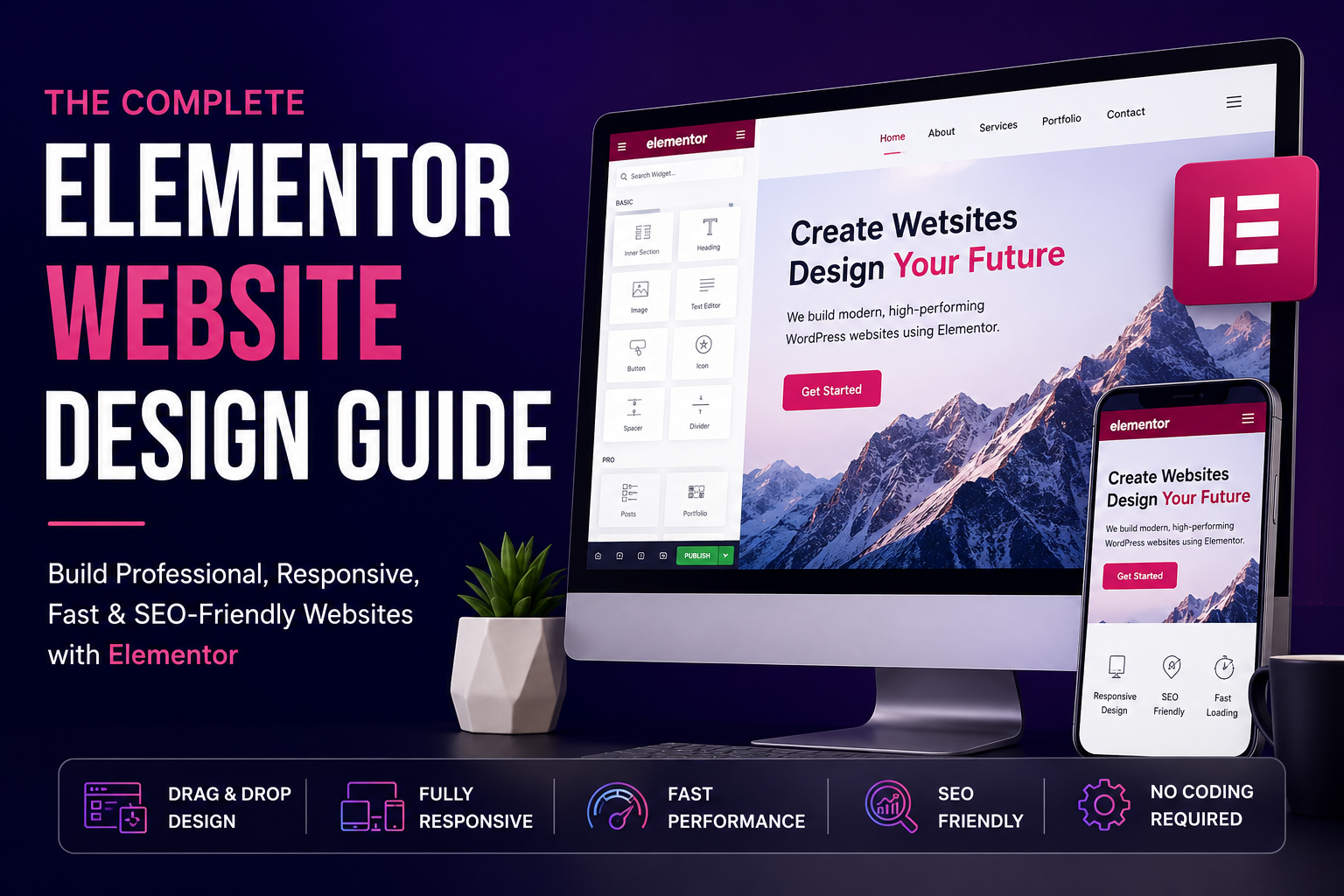
Introduction
Building a professional website no longer requires advanced coding skills. With WordPress and Elementor, businesses, freelancers, and individuals can create modern, visually appealing websites using a flexible drag-and-drop interface.
However, simply installing Elementor and adding widgets is not enough to create a successful website.
A great Elementor website should be visually attractive, easy to navigate, mobile-friendly, fast-loading, accessible, and optimized for search engines.
Whether you are building a website from scratch or planning an Elementor website redesign, having a clear strategy can help you create a better user experience and achieve your business goals.
In this Elementor Website Design Guide, we’ll explore everything you need to know to create a professional WordPress website using Elementor—from planning and design to performance optimization and SEO.
What Is Elementor?
Elementor is a popular visual website builder for WordPress that allows you to design web pages using a drag-and-drop interface.
Instead of writing code for every design element, you can visually create layouts and customize elements such as:
- Headings
- Text sections
- Images
- Buttons
- Forms
- Galleries
- Testimonials
- Pricing tables
- Call-to-action sections
- Navigation menus
Elementor can be used by beginners as well as professional WordPress developers. It also provides advanced design capabilities that make it possible to create highly customized websites.
Depending on your requirements, you can use Elementor’s free features or Elementor Pro for additional functionality.
If you want to learn more about professional WordPress website design, you can explore the different approaches used to create a modern business website.
Step 1: Plan Your Website Before Designing
One of the biggest mistakes people make is starting the design before planning the website.
Before opening Elementor, define your goals, target audience, content structure, and website pages.
Define Your Target Audience
Who will visit your website?
Understanding your audience helps determine your content, design style, navigation, and calls to action.
For example, a website targeting local businesses may need a different design and content strategy than a website targeting enterprise clients or ecommerce customers.
Define Your Website Goals
What do you want visitors to do?
For example:
- Contact you
- Request a quote
- Book a consultation
- Purchase a product
- Subscribe to a newsletter
- Download a resource
Your website design should be built around these goals.
Plan Your Main Pages
A typical business website may include:
- Home
- About
- Services
- Individual Service Pages
- Portfolio
- Blog
- Contact
- Privacy Policy
- Terms and Conditions
Planning your sitemap first makes the design and SEO process much easier.
Step 2: Choose the Right WordPress Theme
Elementor works with many WordPress themes, but choosing a lightweight and compatible theme is important.
Look for a theme that offers:
- Fast performance
- Elementor compatibility
- Responsive design
- Clean code
- Regular updates
- Customization options
Avoid choosing a theme simply because it includes hundreds of design features you don’t need. Too many unnecessary features can affect website performance.
For custom Elementor projects, a lightweight theme combined with Elementor can provide a strong foundation for a fast and flexible website.
If you’re building a website from scratch, choosing the right combination of WordPress, Elementor, and a lightweight theme can make future maintenance much easier.
Step 3: Create a Consistent Design System
A professional website should have a consistent visual identity.
Before building your pages, define your colors, typography, spacing, buttons, and other design elements.
Choose a Color Palette
Choose a primary color, secondary color, accent color, and neutral colors.
For example:
- Primary brand color
- Secondary brand color
- Button color
- Background color
- Text color
Use these colors consistently throughout the website.
Choose Your Typography
Choose fonts for:
- Headings
- Body text
- Buttons
- Navigation
Try to limit the number of font families and weights. Loading too many font files can negatively affect performance.
Maintain Consistent Spacing
Maintain consistent spacing between sections and elements.
A consistent spacing system makes the website look more polished and professional.
Elementor’s global settings can help you maintain consistent colors and typography throughout your website.
Step 4: Design a Conversion-Focused Homepage
Your homepage is often the first impression visitors have of your business.
A good homepage should communicate three things quickly:
- What do you offer?
- Who do you help?
- What should visitors do next?
A typical homepage structure could include the following sections.
Hero Section
Include:
- Clear headline
- Short supporting text
- Primary call-to-action
- Secondary call-to-action, if necessary
- Relevant visual
Your headline should immediately explain your value.
Instead of:
Welcome to My Website
Consider something more specific:
Professional WordPress Websites Designed to Grow Your Business
Services Section
Show your main services with short descriptions and links to dedicated service pages.
This is a great place to add internal links to your most important commercial pages, such as your WordPress website design service or Elementor website development service.
Benefits Section
Explain why visitors should choose your business.
Focus on customer benefits rather than simply listing features.
Process Section
Explain how working with you works.
For example:
- Discovery
- Planning
- Design
- Development
- Testing
- Launch
Portfolio or Case Studies
Show real examples of your work.
Whenever possible, explain the problem, your solution, and the outcome.
You can link this section to your portfolio and individual project case studies.
Testimonials
Add genuine customer testimonials to build trust.
Final Call-to-Action
End the page with a clear next step.
For example:
Ready to Build Your New Website?
Add a prominent button such as:
Get a Free Consultation
Step 5: Use Elementor Containers Effectively
Modern Elementor websites can use containers to create flexible and responsive layouts.
Containers allow you to control:
- Content width
- Direction
- Gap
- Alignment
- Padding
- Responsive behavior
Avoid creating unnecessarily complicated nested structures.
A simpler structure is generally easier to maintain and can improve performance.
When building a new Elementor website, keep your layout structure as simple as possible. This can make the website easier to manage and optimize in the future.
Step 6: Make Your Elementor Website Responsive
A website that looks perfect on desktop may not work well on mobile.
Always test your website on:
- Desktop
- Laptop
- Tablet
- Mobile
Pay attention to:
- Font sizes
- Line heights
- Section spacing
- Image sizes
- Button dimensions
- Navigation
- Horizontal scrolling
Use Elementor’s responsive controls to adjust layouts for different screen sizes.
Don’t simply shrink the desktop design. Instead, consider how the layout should adapt to smaller screens.
A mobile-friendly website is essential because many users now access websites primarily through smartphones.
Step 7: Optimize Images
Large images are one of the most common causes of slow WordPress websites.
Before uploading images:
- Resize them to the required dimensions
- Compress them
- Use modern formats such as WebP where appropriate
- Avoid uploading unnecessarily large files
- Use descriptive filenames
- Add meaningful alt text
For example, instead of:
IMG12345.jpg
use something descriptive such as:
elementor-wordpress-website-design.jpg
However, image filenames should describe the actual image rather than being stuffed with keywords.
If your WordPress website is already slow, you may also want to consider WordPress speed optimization to improve performance and loading times.
Step 8: Improve Elementor Website Speed
A beautiful website is not useful if it takes too long to load.
Website speed can affect user experience, conversions, and search performance.
To improve performance:
Use Quality Hosting
Your hosting environment has a significant impact on website performance.
Choose hosting that provides good server performance, caching, and reliable uptime.
Use Caching
A good caching solution can reduce server response time and improve page loading.
Optimize CSS and JavaScript
Remove unnecessary files and avoid loading resources that aren’t needed on a particular page.
Optimize Fonts
Use fewer font families and weights.
Consider using modern font-loading techniques and avoid loading unnecessary font variations.
Optimize Images
Compress images and use modern image formats.
Use a CDN
A Content Delivery Network can help deliver static assets faster to visitors in different geographic locations.
Avoid Excessive Animations
Animations can make a website more engaging, but too many animations can negatively affect performance and usability.
If you need help improving your website performance, you can learn more about WordPress speed optimization services.
Step 9: Optimize Your Elementor Website for SEO
Elementor itself does not automatically make a website rank on Google.
You still need a proper SEO strategy.
Start with the following:
Keyword Research
Identify what your target audience searches for.
Choose keywords that match the search intent of your potential customers.
SEO-Friendly Page Titles
Create unique and descriptive titles for every important page.
Meta Descriptions
Write compelling descriptions that accurately summarize the page and encourage users to click.
Heading Structure
Use one clear H1 heading and organize content using H2 and H3 headings.
Internal Linking
Link related pages together.
For example, this blog post about Elementor website design can link to your Elementor website development service.
You can also link this article to related blog posts about Elementor performance, WordPress development, and website redesign.
Image Alt Text
Describe meaningful images accurately.
SEO-Friendly URLs
Keep URLs short, descriptive, and easy to understand.
High-Quality Content
Create content that genuinely answers your audience’s questions.
If you offer professional SEO services, you can also link this section to your WordPress SEO services.
Step 10: Create a Strong Internal Linking Structure
Internal links help users navigate your website and help search engines understand your content structure.
For example:
Homepage
↓
Elementor Website Design Service
↓
Elementor Website Design Guide
↓
Elementor Performance Optimization Guide
↓
Portfolio Case Study
Each page should link naturally to other relevant pages.
Avoid adding links simply for the sake of adding links. Every internal link should provide value to the visitor.
A good internal linking strategy can help visitors discover more content while creating a clear relationship between your service pages, blog posts, and portfolio projects.
For example, this article can link to:
- Your Elementor service page
- Your WordPress development page
- Your speed optimization page
- Your SEO service page
- Your portfolio
- Related Elementor blog posts
Step 11: Use Elementor Pro Features Strategically
If you’re using Elementor Pro, you can take advantage of features such as:
- Theme Builder
- Popup Builder
- Dynamic Content
- Form Builder
- Loop Grid
- Custom CSS
- Global Widgets
- Motion Effects
However, don’t use every feature just because it’s available.
The best websites use only the functionality they actually need.
For example, unnecessary popups, animations, sliders, and dynamic elements can increase complexity and affect performance.
When using Elementor Pro, focus on creating a website that is easy to use, fast, accessible, and easy to maintain.
Step 12: Add Trust Elements
Visitors need to feel confident before contacting or purchasing from you.
Consider adding:
- Client testimonials
- Case studies
- Portfolio
- Certifications
- Experience
- Business information
- Contact details
- Privacy policy
- Terms and conditions
For freelancers and agencies, a detailed portfolio can be particularly valuable.
Instead of simply displaying screenshots, explain:
The Challenge → Your Approach → The Solution → The Result
This makes your portfolio much more compelling.
You can link the word portfolio to your main portfolio page and link individual projects to detailed case studies.
Step 13: Test Your Website Before Launch
Before launching your Elementor website, test everything carefully.
Functional Testing
Check:
- Contact forms
- Buttons
- Navigation
- Links
- Search
- Login functionality
- Ecommerce checkout, if applicable
Responsive Testing
Test:
- Desktop
- Tablet
- Mobile
SEO Testing
Check:
- Page titles
- Meta descriptions
- H1 headings
- Canonical URLs
- XML sitemap
- Robots.txt
- Indexing settings
- Schema markup
Performance Testing
Check your website using tools such as:
- Google PageSpeed Insights
- Google Lighthouse
- Chrome DevTools
Fix major performance issues before launch.
Step 14: Maintain Your Elementor Website
Website development doesn’t end when your site goes live.
Regularly:
- Update WordPress
- Update Elementor
- Update plugins
- Create backups
- Monitor security
- Check broken links
- Review website speed
- Update old content
- Monitor Google Search Console
- Review analytics
Always maintain a recent backup before performing major updates.
Regular maintenance can help keep your website secure, fast, and reliable.
If you need ongoing support, you can also link this section to your WordPress maintenance service.
Common Elementor Website Design Mistakes
Avoid these common mistakes:
1. Too Many Animations
Animations should enhance the user experience, not distract visitors.
2. Too Many Fonts
Keep typography simple and consistent.
3. Huge Images
Large images can slow down your website.
4. Poor Mobile Design
Always design and test for mobile users.
5. Weak Calls to Action
Visitors should know what to do next.
6. Overcomplicated Layouts
Simple, clear layouts are often more effective.
7. Ignoring Accessibility
Make sure your website is usable by as many people as possible.
8. Installing Too Many Plugins
Every plugin can add complexity and potential performance or security issues.
9. Designing Without SEO
SEO should be considered during the design and development process—not added as an afterthought.
Elementor Website Design Checklist
Before launching your website, make sure:
- Website goals are clearly defined
- Target audience is identified
- Sitemap is planned
- Brand colors are consistent
- Typography is consistent
- Navigation is simple
- Website is mobile responsive
- Images are optimized
- Pages load quickly
- SEO titles are optimized
- Meta descriptions are written
- Heading structure is correct
- Internal links are added
- Contact forms work
- All links are tested
- Website is secured with HTTPS
- XML sitemap is submitted
- Google Search Console is configured
- Analytics is installed
- Regular backups are configured
Final Thoughts
Elementor makes it easier to create professional WordPress websites without having to build every design element from scratch. But successful website design requires more than creating attractive pages.
A high-quality Elementor website combines good design, clear content, responsive layouts, fast performance, accessibility, SEO, security, and a strong user experience.
Whether you’re building a website for a small business, personal brand, freelancer, or ecommerce store, the best approach is to start with a clear strategy and then build the website around your users’ needs.
If you are planning to create or redesign an Elementor website, working with an experienced WordPress and Elementor developer can help you avoid common design and performance problems and create a website that is built for both users and search engines.
Need a Professional Elementor Website?
I help businesses create modern, responsive, fast, and SEO-friendly WordPress websites using Elementor.
Whether you need a new website, an Elementor redesign, performance optimization, or ongoing WordPress support, the right website strategy can help you build a stronger online presence.
Frequently Asked Questions
Is Elementor good for website design?
Yes. Elementor is a flexible WordPress website builder that allows you to create custom layouts without writing code for every design element. It can be used for business websites, landing pages, portfolios, blogs, and many other types of websites.
Is Elementor good for SEO?
Elementor can be used to build SEO-friendly websites, but Elementor alone does not guarantee higher rankings. SEO also depends on factors such as website performance, content quality, technical SEO, keyword targeting, backlinks, and user experience.
Can Elementor websites be fast?
Yes. Elementor websites can be optimized for performance by using quality hosting, optimized images, caching, efficient fonts, optimized CSS and JavaScript, and a limited number of plugins.
Is Elementor mobile-friendly?
Yes. Elementor provides responsive design controls that allow you to customize layouts for desktop, tablet, and mobile devices. However, every website should be manually tested on different screen sizes before launch.
Should I use Elementor Free or Elementor Pro?
The right option depends on your project requirements. Elementor Free provides essential website-building features, while Elementor Pro adds advanced tools and features that can be useful for professional websites and custom development